
Create your line
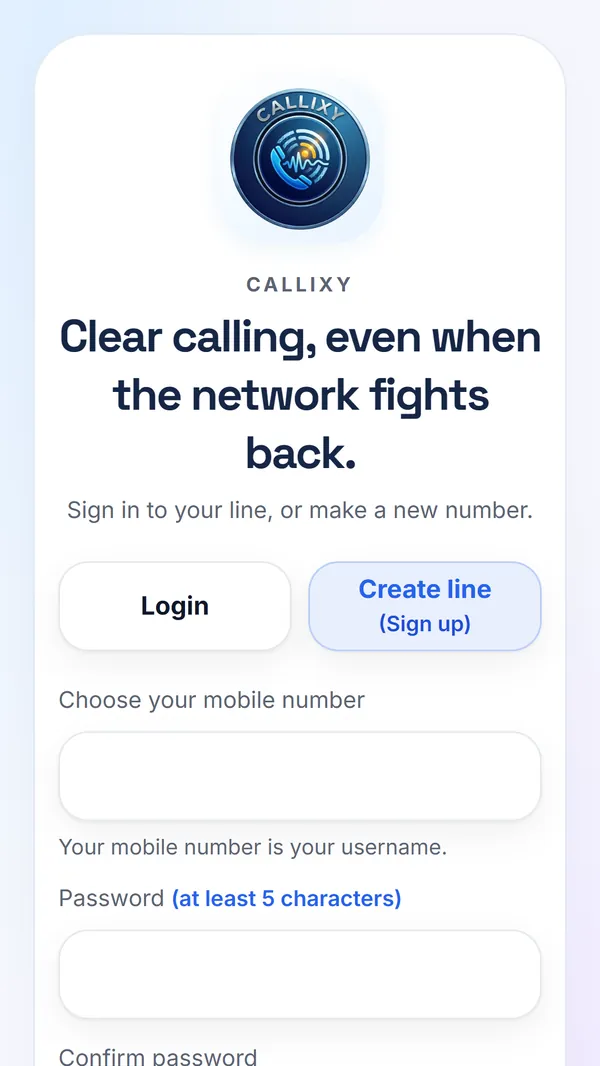
- Open voip.3dar4.org on any phone or computer, or open the Callixy app on Android, and choose Join.
- Paste the invite code someone on Callixy gave you (12 letters and digits; Paste puts it in for you, and a link with the code opens Join with it). A code makes one line and is then used up.
- Once the code is checked, type the number you want for your line: your own phone number or any other number of 6 to 15 digits. This number is your username: you sign in with it, and people call you on it. Every line gets invite codes of its own to pass on (Me → Invite codes).
- Choose a password and type it twice. A long password is safer than a clever one.
- Accept the Terms of Use and the Privacy Policy, then tap Join Callixy. Your recovery code is shown once: with it you can choose a new password if you forget yours. It is also kept for you in Chat, in your Safe box.
- Open Profile and add your name, so people see who is calling.
You must be at least 13 years old to create a line and meet the age and consent requirements in your country or territory.
On an Android phone
The Callixy app for Android is coming to Google Play. It runs the same Callixy you know from the browser, and adds what only an app can do: it rings with the app closed, shows the call on the lock screen, and works with Bluetooth headsets and car kits. Until it is on Google Play, use Callixy in Chrome on Android, as described for laptops below.
On the first start, Callixy explains each permission before Android asks for it:
| Permission | What it is for |
|---|---|
| Microphone | So the person you call can hear you. |
| Notifications | To ring for incoming calls and to show missed calls and messages. |
| Full-screen calls | To show a ringing call on the lock screen, like a phone call. |
| Nearby devices | To use Bluetooth headsets, earbuds and car kits during calls. |
| Camera | For video calls. The camera is only on while you turn video on. |
| Display over other apps | To bring the ringing call to the front on phones that hide it. |
| Local network | For a direct connection when both phones are on the same Wi-Fi. |
If you refused a permission by mistake, Callixy asks again on the next start and offers a button that opens the right settings page.
Calls do not ring when the app is closed? Some phones stop apps in the background to save battery, often Xiaomi, Huawei, OPPO, vivo and Samsung. Open the phone's battery settings for Callixy and allow it to run in the background.
On a laptop or desktop
- Open voip.3dar4.org in Chrome, Edge, Firefox or Safari and sign in. Windows, macOS, Linux and ChromeOS all work.
- When the browser asks, allow the microphone, and the camera when you want video. Callixy tells you why before the browser asks.
- Allow notifications, so Callixy can ring when its tab is closed or in the background.
- To use Callixy as an app, choose Install in the address bar of Chrome or Edge (or Add to Dock in Safari). It then opens in its own window.
On iPhone or iPad
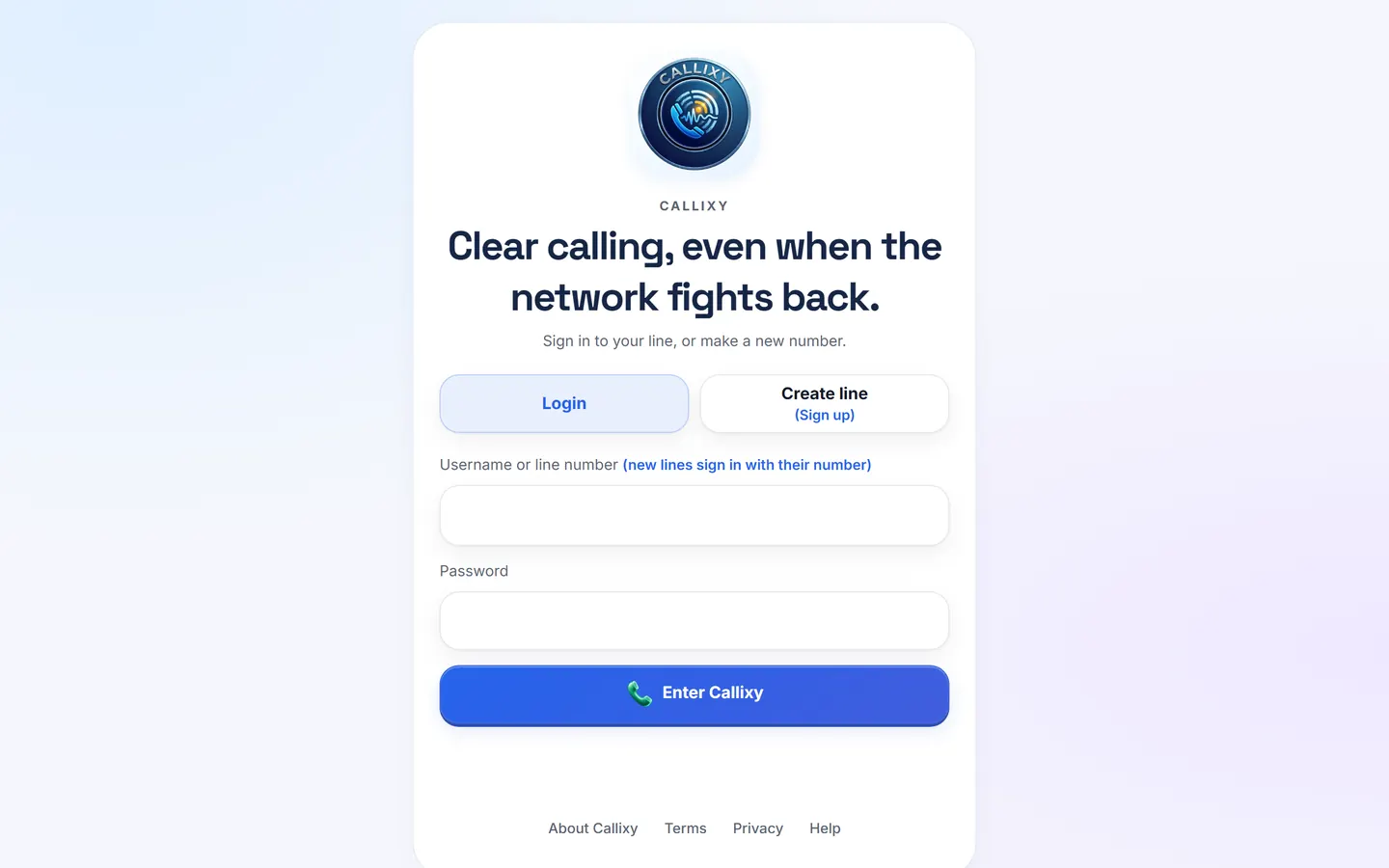
- Open voip.3dar4.org in Safari and sign in.
- So that calls reach you while Callixy is closed, tap Share, then Add to Home Screen. Open Callixy from the new icon and allow notifications. This needs iOS or iPadOS 16.4 or later.
- On iPhone an incoming call arrives as a notification. Tap it to open the call and answer.
If the microphone was refused: tap aA in the address bar, then Website Settings, and set Microphone to Allow.
Make a call
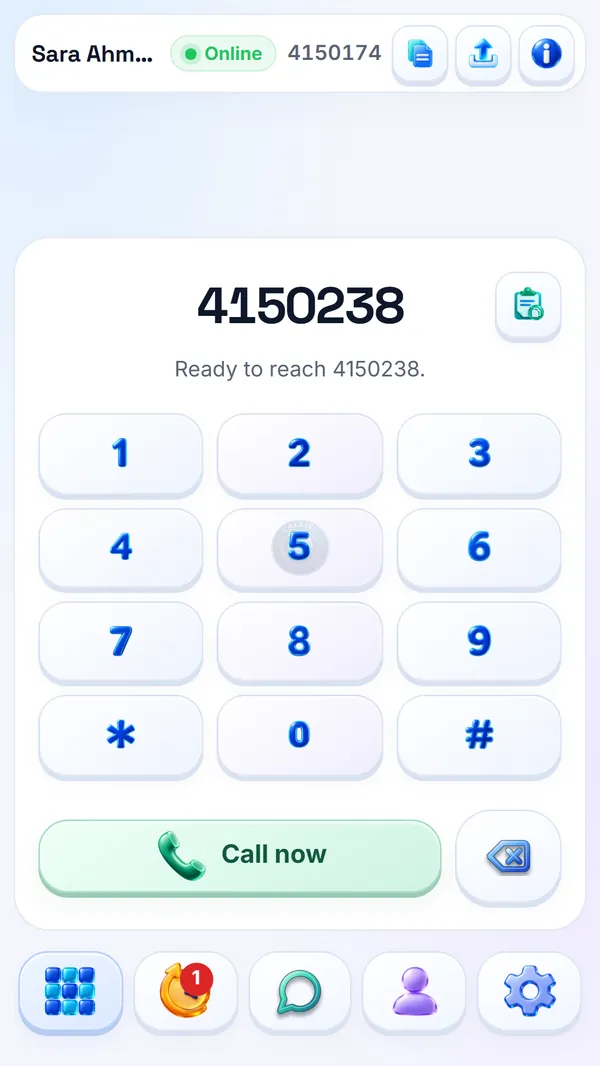
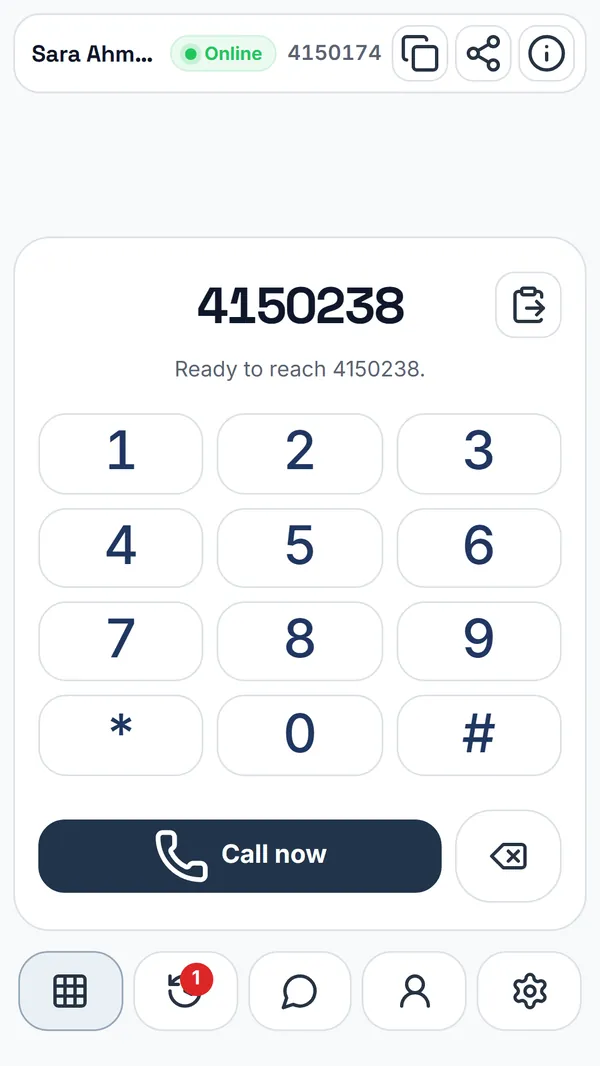
On the Keypad, type the number and tap Call now. The keypad shows whether the number belongs to a Callixy line before you call.
You can also call from a recent call at the top of the keypad, from a row in History, or from the call button in a chat. The paste key fills in a number you copied.
Every line can call every other line: phone to phone, phone to laptop, and laptop to laptop.
Answer a call
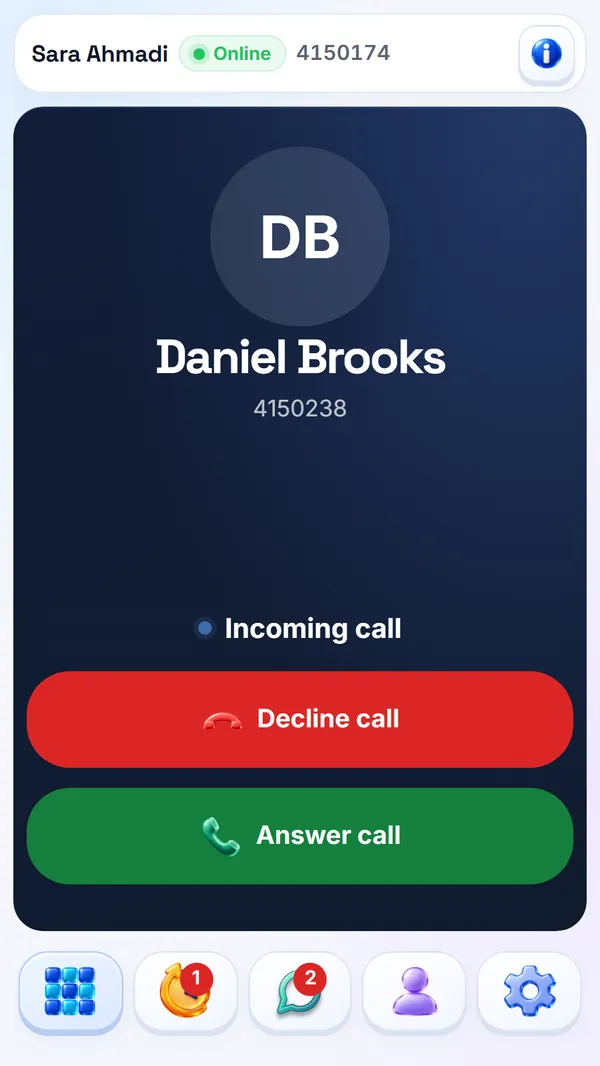
An incoming call shows the caller's name and number with Answer call and Decline call.
- Android app: the call rings even when the app is closed, also on the lock screen.
- Browser: an open Callixy tab rings. With notifications allowed, a notification appears when the tab is closed; click it to answer.
- iPhone: tap the notification to open the call.
One line is signed in on one device at a time. If you sign in on another device, the line moves there and the first device is signed out.
During a call
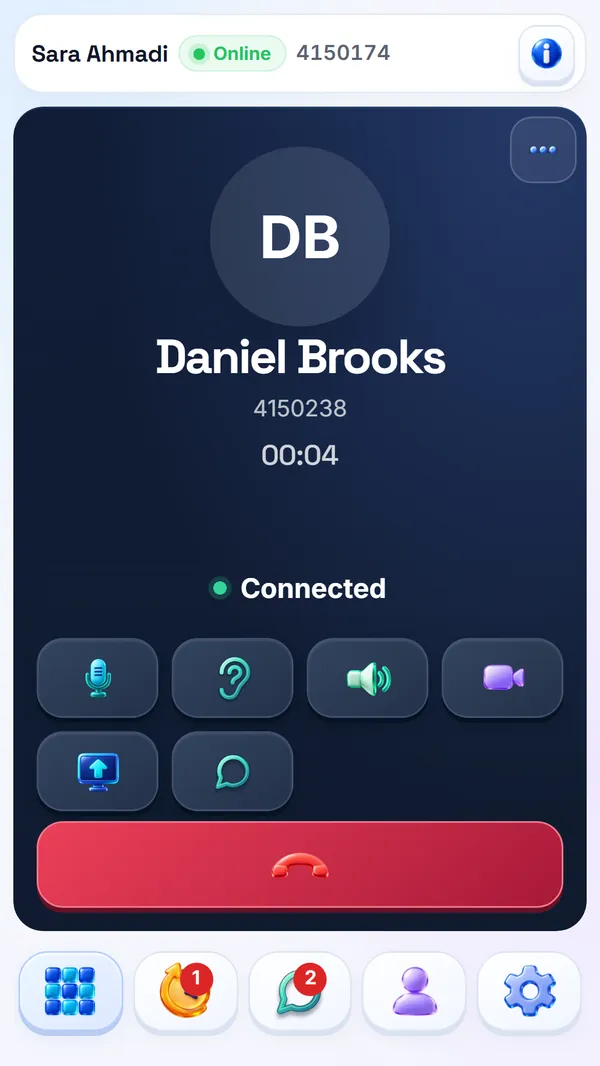
The buttons under the call, from the left:
- Mute mic: the other person stops hearing you.
- Mute sound: you stop hearing the other person.
- Speaker and Bluetooth: where the sound plays. Bluetooth appears when a headset is connected.
- Camera: start or stop your video.
- Share screen and Chat.
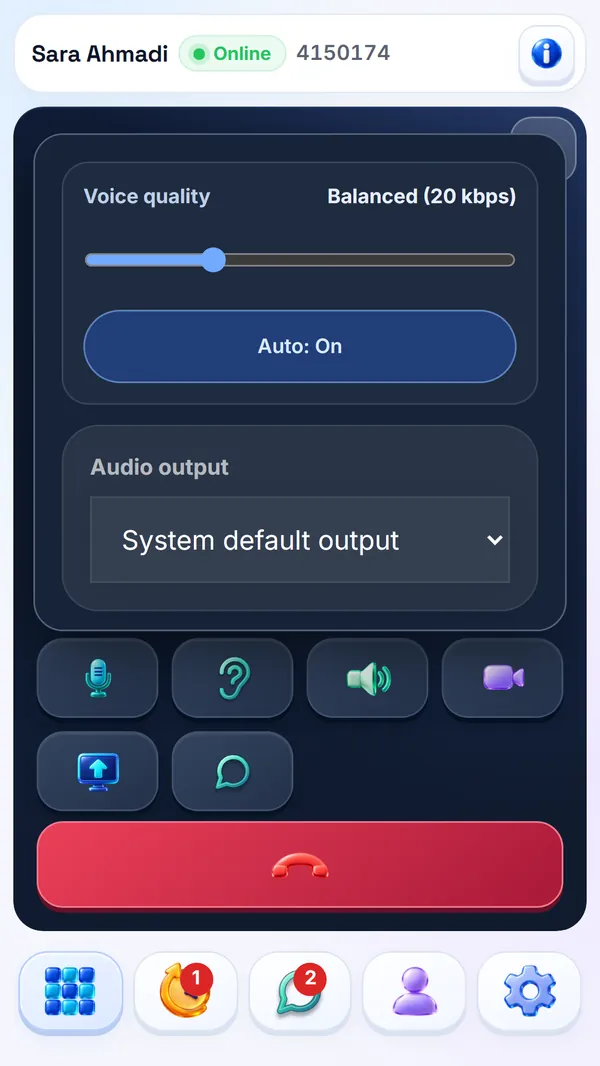
The red button ends the call. The ··· button at the top opens Voice quality, the audio output and the video quality.
Voice quality
The slider has eight steps, from Rescue at 12 kbps to Max at 96 kbps. With Auto: On, every call starts on Balanced (20 kbps) and Callixy moves the slider for you as the connection changes. Move it by hand to fix a step; turn Auto on again to let Callixy choose.
Both sides of the call use the same step.
Video and screen sharing
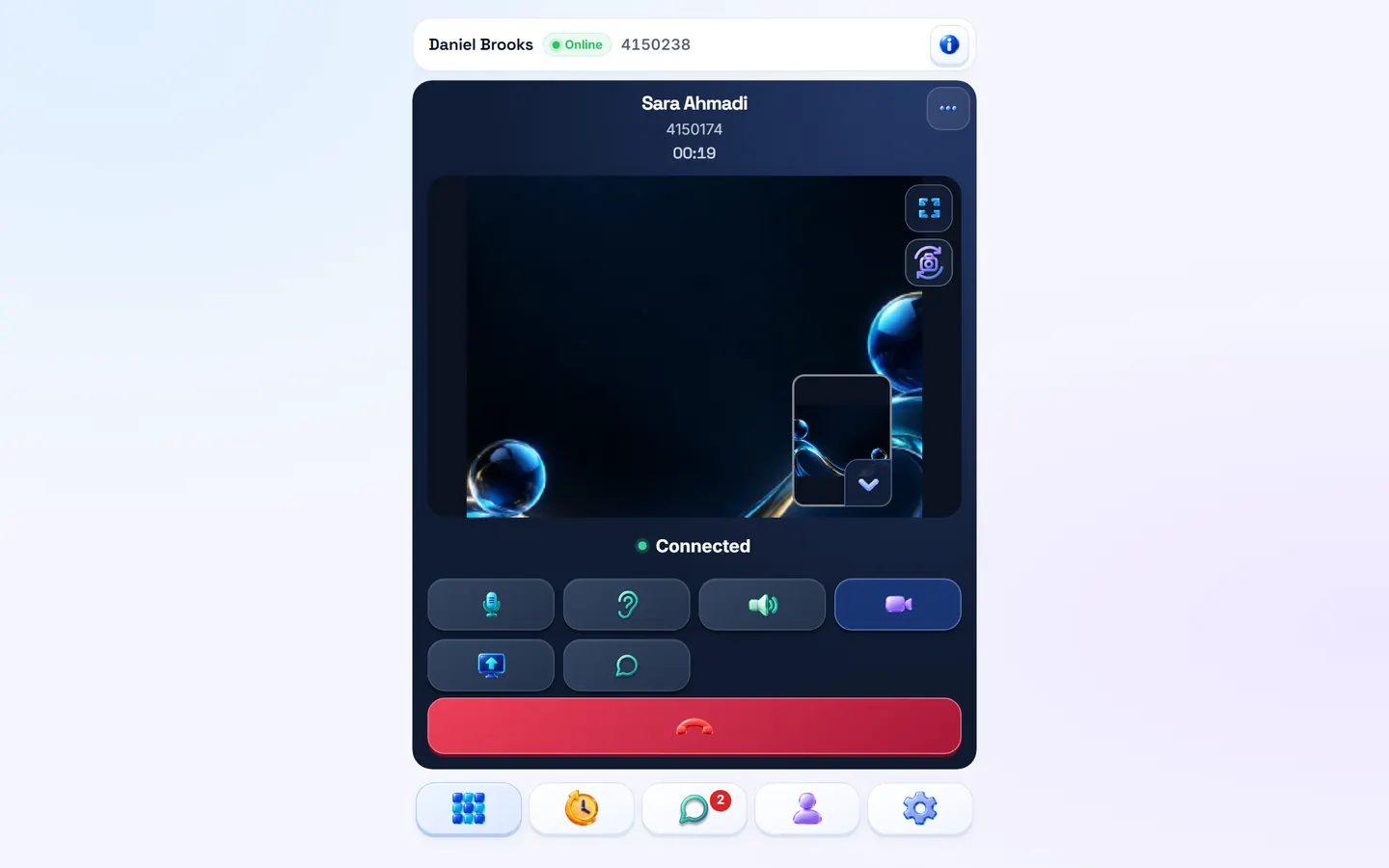
Tap Camera to start video at any point in a call; the other person can turn on theirs too. Inside the video you can switch cameras and go full screen.
Video quality is under ···: Auto adapts to the network, Low saves data, Medium and High look sharper. On a weak connection, turning video off frees the most room for the voice.
Share screen shows your screen to the other person. It works in desktop browsers and in the Android app; phone browsers and iPhone cannot share a screen.
Chat
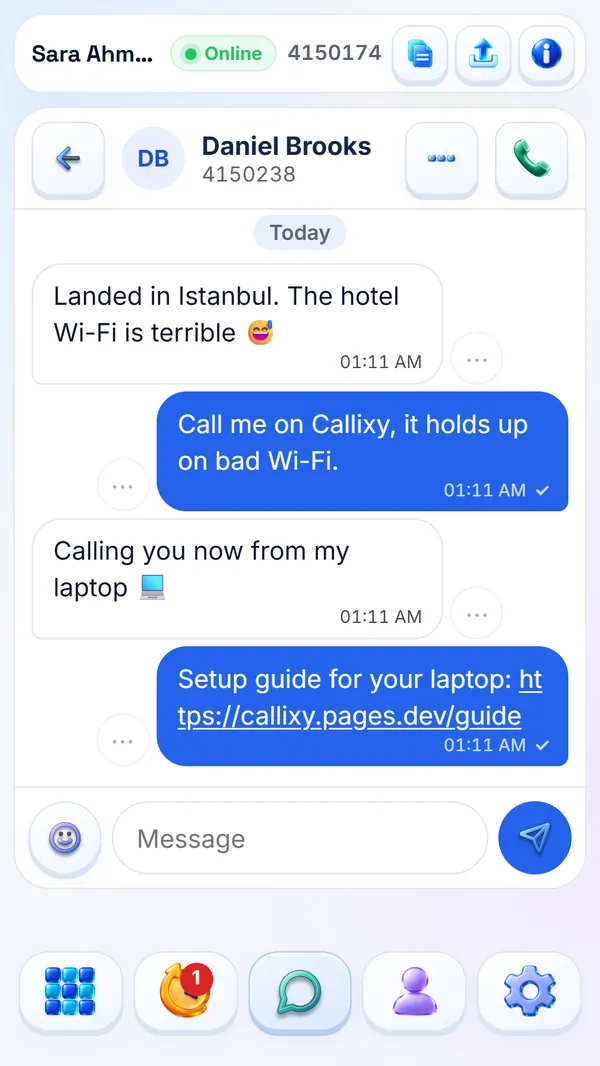
Open Chat from the bottom bar, from History, or with the chat button during a call. You can chat with a line once you have called each other, or when one of you has saved the other as a contact.
- Send text, emoji and links, up to 2,000 characters per message.
- A second check mark shows that your message was read, and you see when the other person is typing.
- Use ··· next to a message to copy it, to edit your own message within 48 hours, or to delete it for both of you.
Voice and video messages
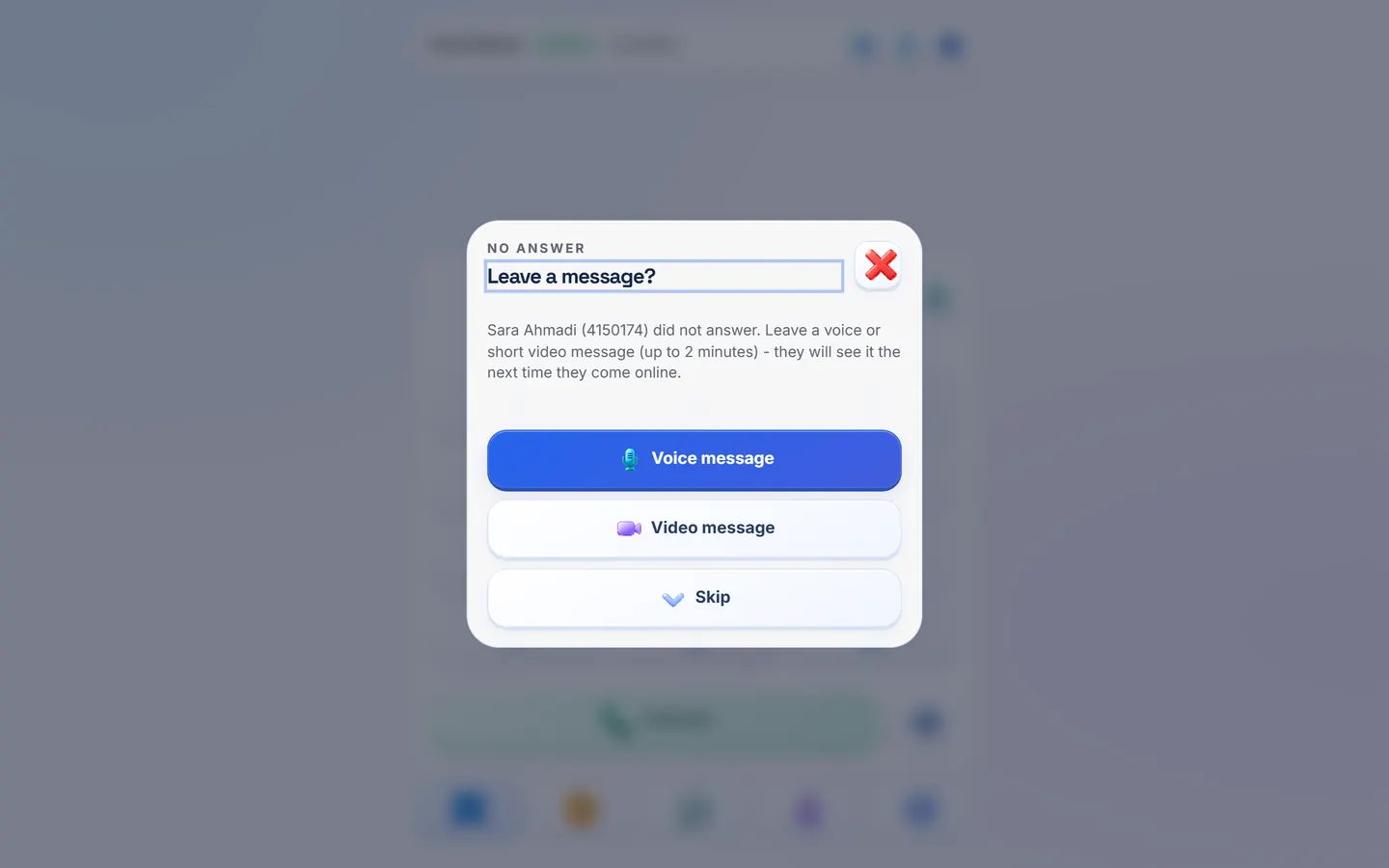
When a call you made is not answered, Callixy offers Voice message, Video message or Skip. A message can be up to two minutes long.
The message appears in the other person's History, marked as new, and they get a notification. Messages are kept for 30 days.
History and missed calls
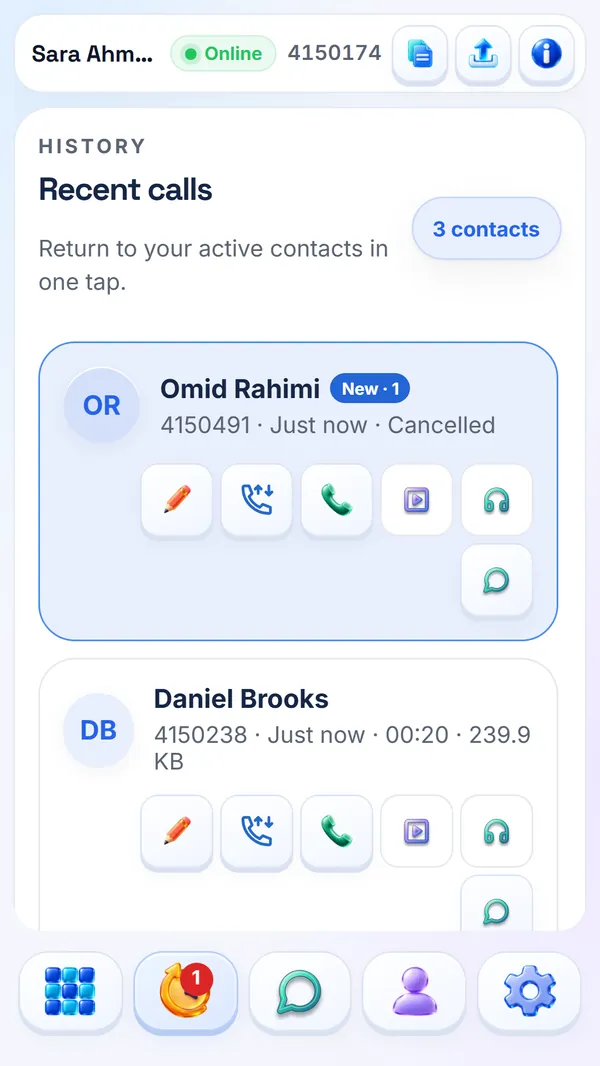
History lists the people you talked to, newest first, with how long each call lasted and how much data it used. Missed calls and new messages are marked until you have seen them.
The buttons on a row call back, open the chat, rename the contact or play the messages they left. Names you give your contacts are visible only to you.
Profile and privacy
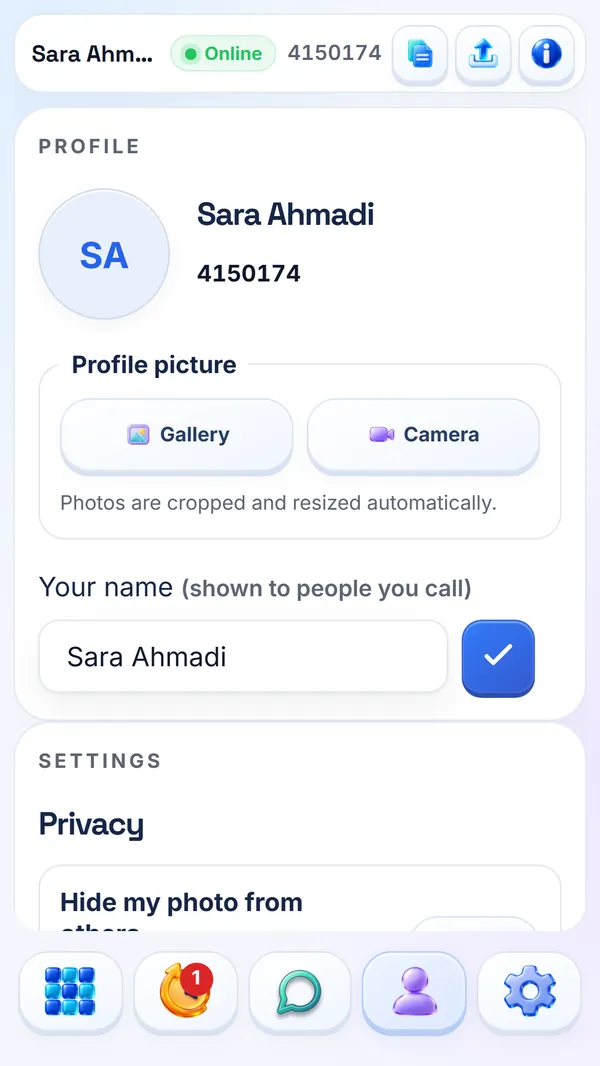
In Profile, add a photo from the gallery or the camera. It is cropped and resized for you. Your name is shown to the people you call.
- Hide my photo from others: nobody else sees your photo.
- Hide other people's photos: you see initials instead of photos.
Other people see your photo only during a call with you, or when you are in their History. Profile also lists the lines you blocked.
Themes
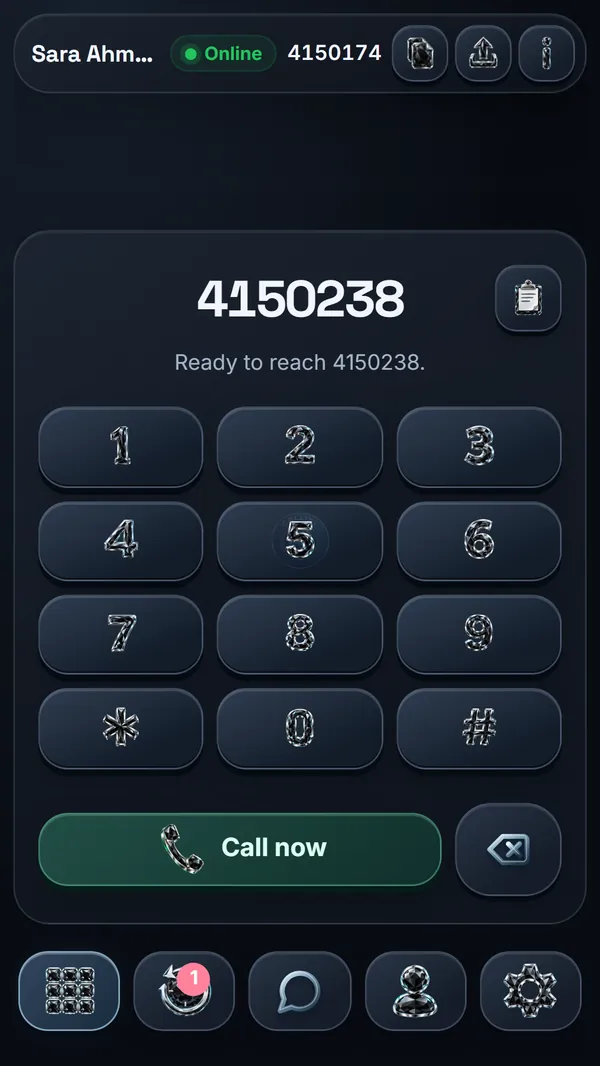
In Settings, choose Glass (sculpted and colorful), Black Diamond (deep graphite) or Minimal (quiet and precise).
On a weak network
- Leave voice quality on Auto. It lowers the bitrate before the voice breaks up and raises it again when the connection recovers.
- If the voice still breaks up, open ··· and move the slider to Rescue. Turn video off.
- Use the steadier connection. Sometimes mobile data beats a busy Wi-Fi, sometimes the other way round.
- If calls do not connect at all, open the network check and run it. It shows which routes your network lets through.
You do not need to change anything for blocked networks. Callixy moves the call to a relay on port 443, and to its backup server, by itself.
Block or report someone
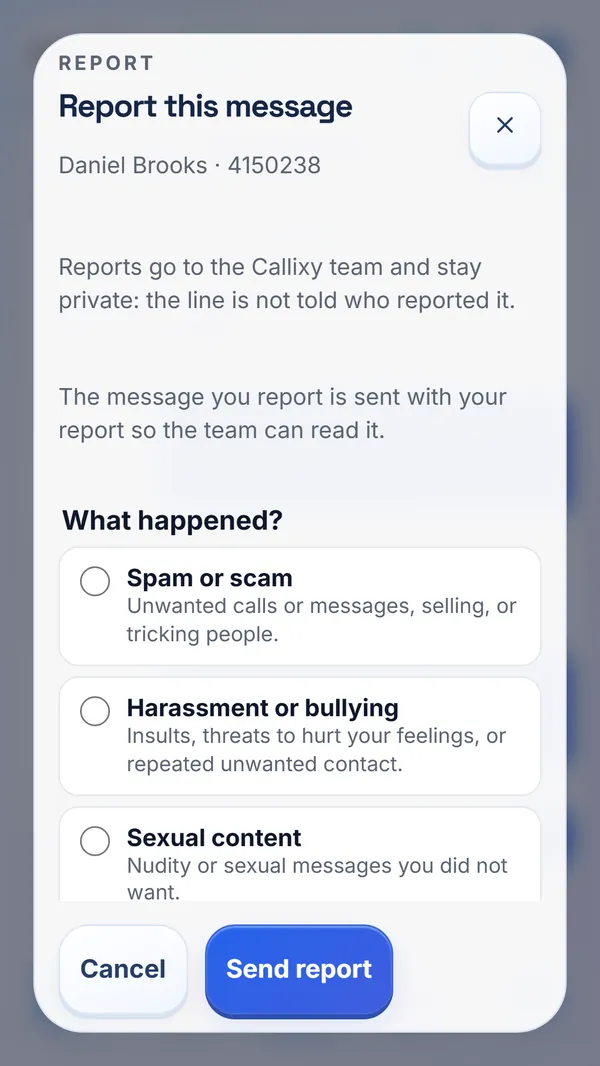
- In a chat, open ··· at the top and choose Report this line or Block this line. To report one message, use ··· next to it and choose Report message.
- From History, open the details of a call and choose Report or Block.
A report goes to the Callixy team with the reason you chose and, for a message, a copy of that message. The other person is not told who reported them. The line is blocked in the same step unless you untick it.
A blocked line cannot call you, chat with you or leave you messages. You can unblock it in Profile.
Delete your line
In Profile, choose Delete my line and confirm with your password. Your line and its data are deleted at once. What is deleted, and how to do it from the web.